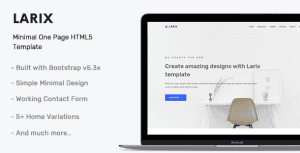

Orbitix – Broadband & Internet Provider Elementor Template Kit
Giá gốc là: 657.500₫.131.500₫Giá hiện tại là: 131.500₫.
-
Compatible for wordpress v6.8.1
-
Compatible for elementor v3.29.2
-
Buy once, free updates forever
Introducing Orbitix, a cutting-edge Broadband & Internet Provider Elementor Template Kit designed for ISPs, fiber optic services, telecom companies, and wireless network providers. Built with WordPress and fully compatible with Elementor Free, Orbitix enables you to launch a fast, modern, and user-friendly website—no coding required. This template kit features high-speed visuals, pricing tables, coverage maps, and service comparison sections tailored for showcasing fiber plans, WiFi solutions, and connectivity packages. Whether you’re offering residential broadband, business internet, or satellite services, Orbitix provides a sleek, responsive platform to boost your online presence and convert visitors into loyal customers.
Suitable For:
Features:
Templates Included:
Required Plugin(included):
Elementor Free required
How to Use Template Kits:
This is not a WordPress Theme. Template kits contain the design data for Elementor only and are installed using the envato Elements plugin for WordPress or directly through Elementor.
Elementor Template Kits use the Envato Elements plugin to install.
Detailed Guide:
https://help.market.envato.com/hc/en-us/articles/36033428836889-How-to-Upload-Install-Elementor-Template-Kits-from-Themeforest-to-WordPress
For further support, go to Elementor > Get Help in WordPress menu.
How to Import Metforms If you have Elementor Pro, skip install of Metform and form blocks.
-
Import the metform block templates
-
Import the page template where the form appears and right-click to enable the Navigator
-
Locate and select the Metform widget and click Edit Form. Choose New, then Edit Form. The builder will appear.
-
Click ‘Add Template’ grey folder icon.
-
Click ‘My Templates’ tab.
-
Choose your imported metform template, then click ‘Insert’ (click No for page settings).
-
Once the template is loaded, make any desired customizations and click ‘Update & Close’ The form will appear in the template
-
Click Update
Setup Global Header and Footer in ElementsKit If you have Elementor Pro, headers and footers may be customized under Theme Builder.
-
Import the header and footer template
-
Go to ElementsKit > Header Footer and click Add New (if prompted with a wizard, you may click Next through it without taking any action)
-
Title the header, leave Entire Site selected and toggle Activation to On
-
Click the gray Edit Content button to load the builder
-
Click the gray folder icon and select the header template to import, select your menu in the nav element and click Update.
-
Repeat for Footer
IMPORTANT:
This Template Kit uses demo images from Envato Elements. You will need to license these images from Envato Elements to use them on your website, or you can substitute them with your own.
Download all image Click Here
Tặng 1 theme/plugin đối với đơn hàng trên 140k:
Flatsome, Elementor Pro, Yoast seo premium, Rank Math Pro, wp rocket, jnews, Newspaper, avada, WoodMart, xstore
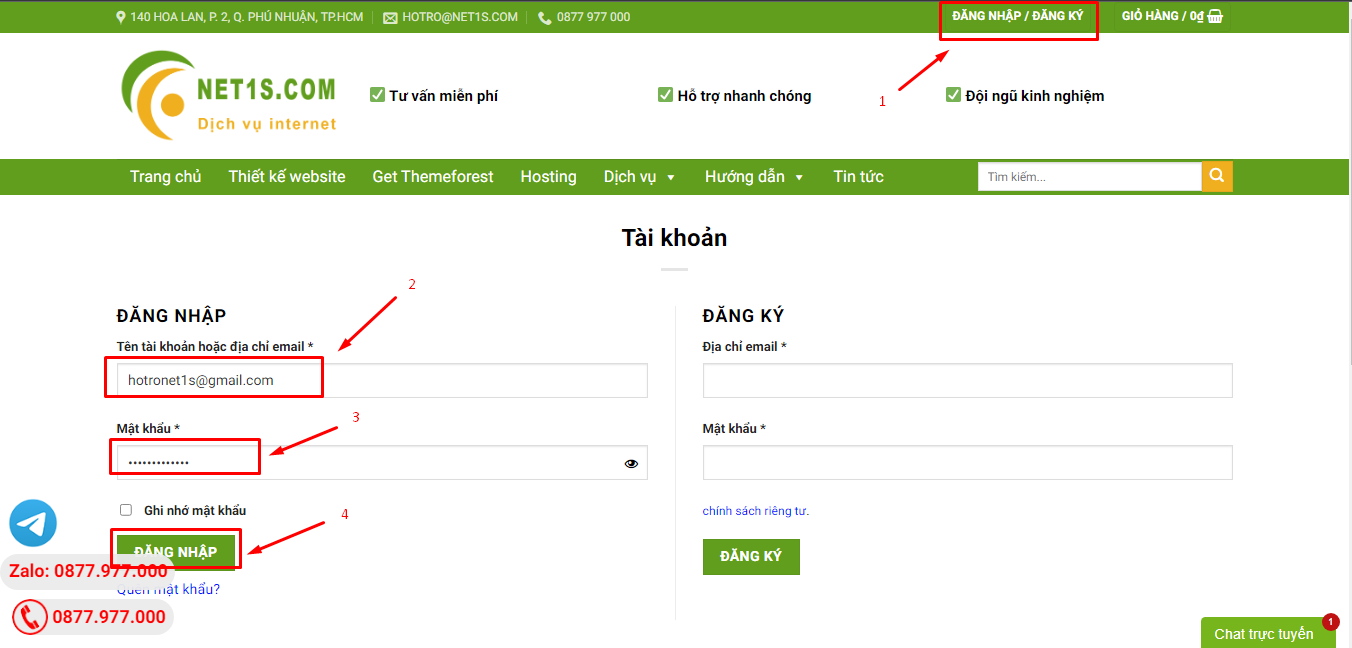
1. Bấm Đăng nhập/đăng ký.
2. Điền thông tin email, mật khẩu đã mua hàng -> bấm Đăng nhập.
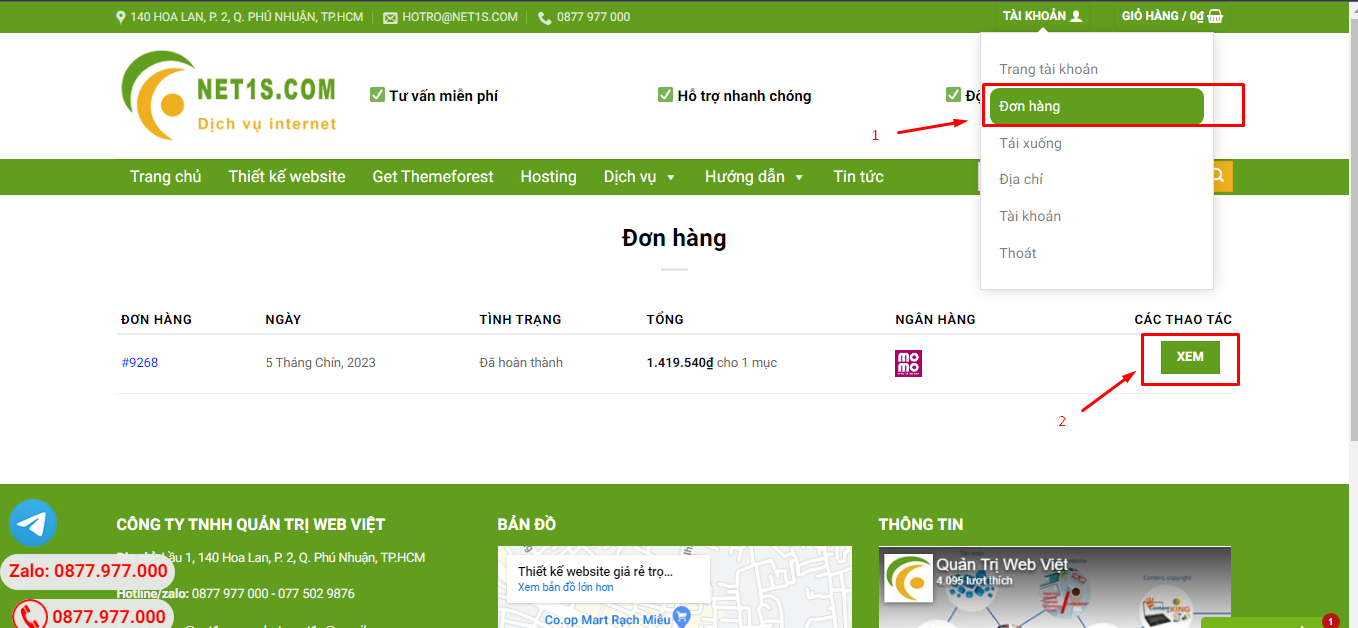
3. Di chuột đến mục Tài khoản -> Đơn hàng -> bấm vào Xem ở đơn hàng đã mua.
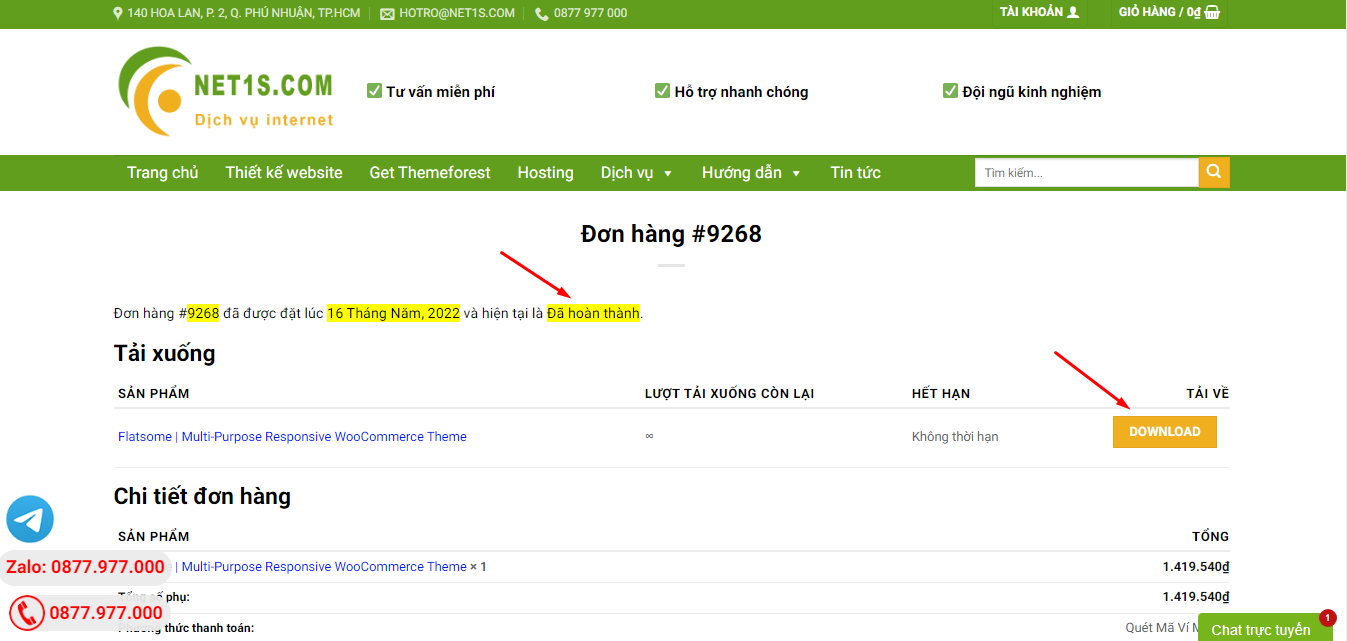
4. Đơn hàng hiển thị tình trạng Đã hoàn thành -> bấm vào Download để tải sản phẩm về.
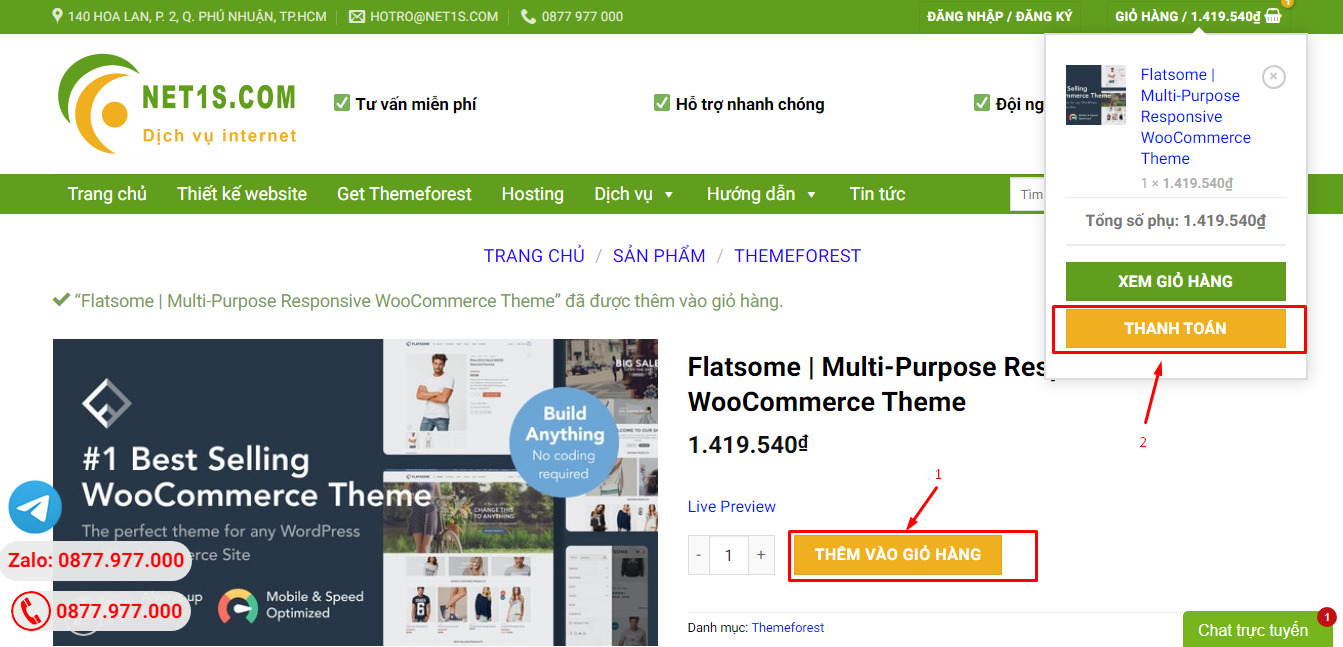
1. Bấm Thêm vào giỏ hàng -> bảng thông tin giỏ hàng sẽ hiển thị góc trên bên phải.
2. Bấm Thanh toán.
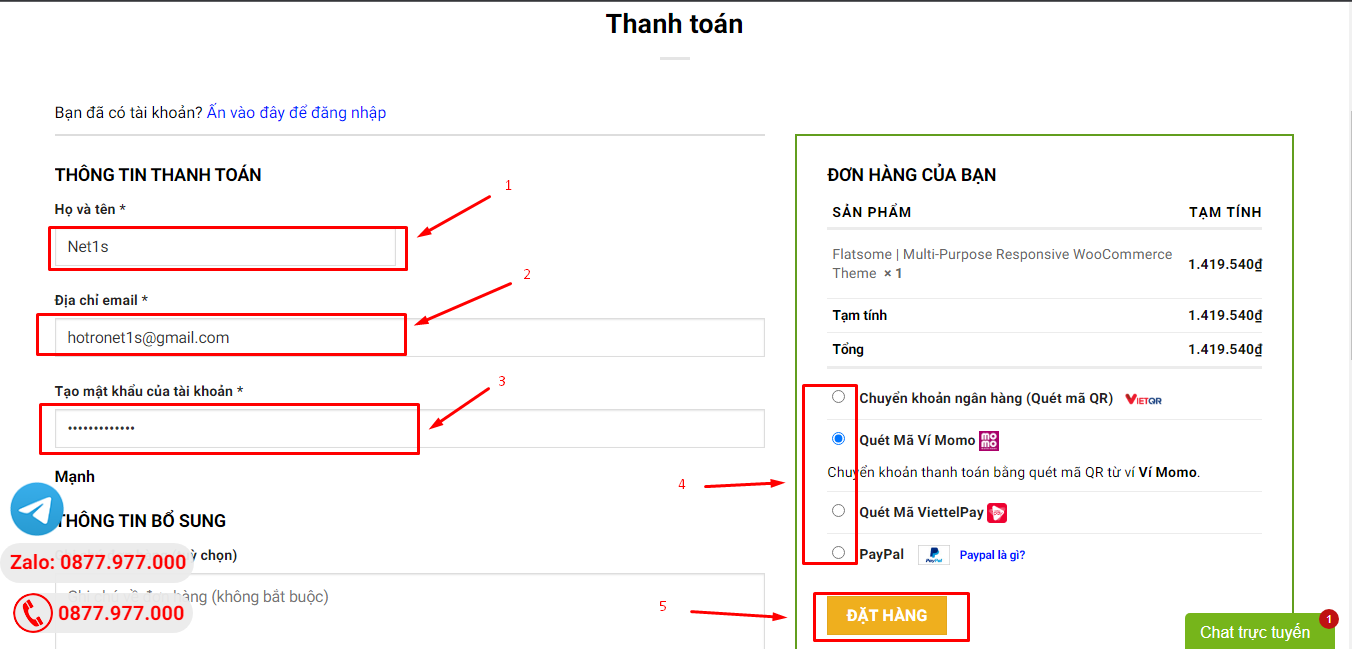
3. Điền thông tin thanh toán gồm: tên, email, mật khẩu.
4. Chọn phương thức thanh toán có hỗ trợ gồm: Chuyển khoản ngân hàng (quét mã QR), quét mã Momo, quét mã Viettelpay, Paypal.
5. Bấm Đặt hàng để tiếp tục.
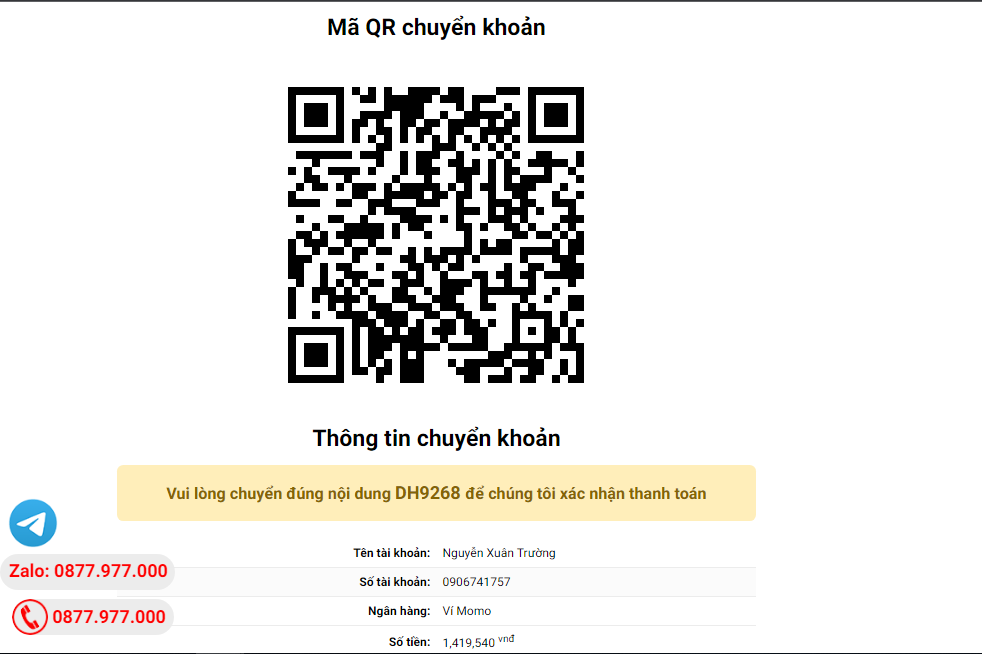
5. Thanh toán bằng cách quét mã QR (Nội dung chuyển khoản và số tiền sẽ tự động được tạo), hoặc chuyển khoản nhập số tiền và nội dung chuyển khoản như hướng dẫn.
6. Sau khi thanh toán xong đơn hàng sẽ được chúng tôi xác nhận đã hoàn thành và bạn có thể vào mục Đơn hàng để tải sản phẩm đã mua về.
Sản phẩm tương tự